Temporary Security Credentials (The Successful Market Practice)
Temporary security credentials are time based accesses for AWS Users. They can be configured to last for anywhere from a few minutes to several hours (Min of 1 and Max of 2 hours as best practice). After the credentials expire, AWS no longer recognizes them or allows any kind of access from API requests made with them.
Temporary security credentials are not stored with the user but are generated dynamically and provided to the user when requested. When (or even before) the temporary security credentials expire, the user can request new credentials, as long as the user requesting them still has permissions to do so.
Advantages: –
Temporary credentials are useful in scenarios that involve identity federation, delegation, cross-account access, and IAM roles. Also
- You do not have to distribute or embed long-term AWS security credentials with an application.
- You can provide access to your AWS resources to users without having to define an AWS identity for them. Temporary credentials are the basis for roles and identity federation.
- The temporary security credentials have a limited lifetime, so you do not have to rotate them or explicitly revoke them when they’re no longer needed. After temporary security credentials expire, they cannot be reused. You can specify how long the credentials are valid, up to a maximum limit.
How to implement?
Integrate with corporate directory
IAM can be used to grant your employees and applications federated access to the AWS Management Console and AWS service APIs, using your existing identity systems such as Microsoft Active Directory. You can use any identity management solution that supports SAML 2.0, or feel free to use one of our federation samples (AWS Console SSO or API federation).
Enterprise identity federation – You can authenticate users in your organization’s network, and then provide those users access to AWS without creating new AWS identities for them and requiring them to sign in with a separate user name and password. This is known as the single sign-on (SSO) approach to temporary access. AWS STS supports open standards like Security Assertion Markup Language (SAML) 2.0, with which you can use Microsoft AD FS to leverage your Microsoft Active Directory. You can also use SAML 2.0 to manage your own solution for federating user identities. For more information, see About SAML 2.0-based Federation.
- Custom federation broker– You can use your organization’s authentication system to grant access to AWS resources.
- Federation using SAML 2.0– You can use your organization’s authentication system and SAML to grant access to AWS resources.
Enable Federated API Access to your AWS Resources for up to 12 hours Using IAM Roles
Applications and federated users can complete longer running workloads in a single session by increasing the maximum session duration up to 12 hours for an IAM role. Users and applications still retrieve temporary credentials by assuming roles using AWS Security Token Service (AWS STS), but these credentials can now be valid for up to 12 hours when using the AWS SDK or CLI. This change allows your users and applications to perform longer running workloads, such as a batch upload to S3 or a CloudFormation template, using a single session. You can extend the maximum session duration using the IAM console or CLI. Once you increase the maximum session duration, users and applications assuming the IAM role can request temporary credentials that expire when the IAM role session expires.
How to configure the maximum session duration for an existing IAM role to 4 hours (maximum allowed duration is 12 hours) using the IAM console. I’ll use 4 hours because AWS recommends configuring the session duration for a role to the shortest duration that your federated users would require accessing your AWS resources. I’ll then show how existing federated users can use the AWS SDK or CLI to request temporary security credentials that are valid until the role session expires.
Prerequisites
Here we use a federation example. If there is an existing identity provider, you might have enabled federation by using SAML to allow your users to access your AWS resources. This post assumes you have created an IAM role for a third-party identity provider (Onprem IAM) that defines the permissions for your federated users. You could also have configured SAML-based federation for API access to AWS. For my example, I’ve chosen to configure SAML-based federation using Microsoft Active Directory Federation Service (ADFS) as the identity provider (IdP).
Configure the maximum session duration for an existing IAM role to 4 hours
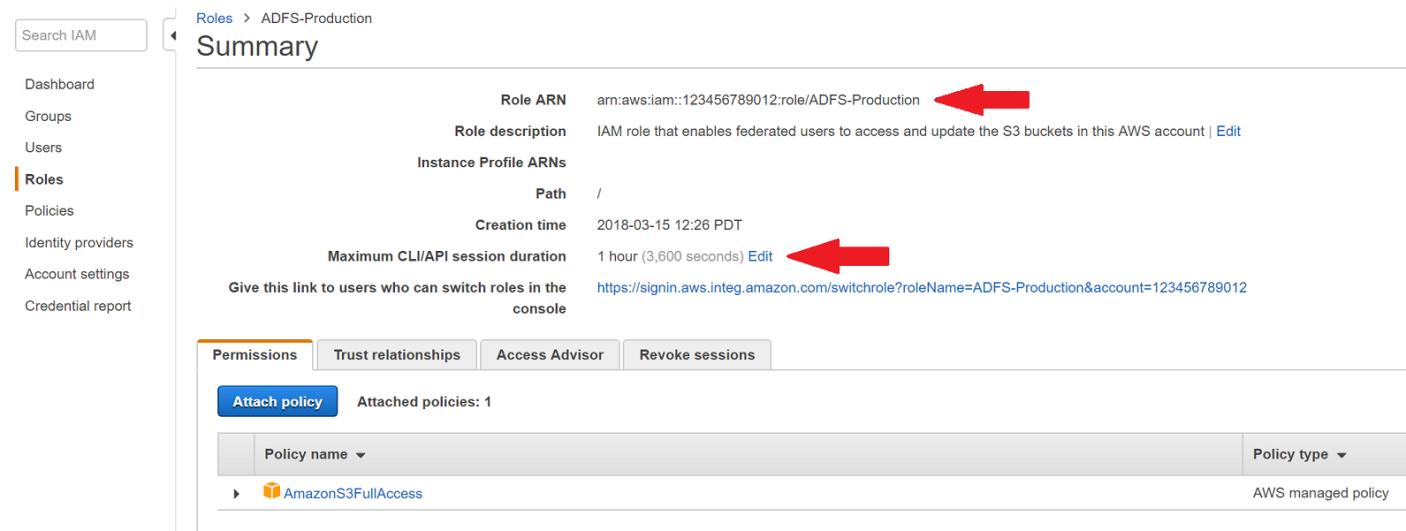
Assume we have an existing IAM role called ADFS-Production that allows your federated users to upload objects to an S3 bucket in your AWS account. You want to extend the maximum session duration for this role to 4 hours. By default, IAM roles in your AWS accounts have a maximum session duration of one hour. To extend a role’s maximum session duration to 4 hours, follow the steps below:
- Sign in to the IAM console.
- In the left navigation pane, select Roles and then select the role for which you want to increase the maximum session duration. For this example, I select ADFS-Production and verify the maximum session duration for this role. This value is set to 1 hour (3,600 seconds) by default.
- Select Edit, and then define the maximum session duration.
4. Select one of the predefined durations or provide a custom duration. For this example, I set the maximum session duration to be 4 hours.
5. Select Save changes.
Alternatively, you can use the latest AWS CLI and call Update-Role to set the maximum session duration for the role ADFS-Production. Here’s an example to set the maximum session duration to 14,400 seconds (4 hours).
$ aws iam update-role -–role-name ADFS-Production -–max-session-duration 14400
Now that you’ve successfully extended the maximum session for your IAM role, ADFS-Production, your federated users can use AWS STS to retrieve temporary credentials that are valid for 4 hours to access your S3 buckets.
Access AWS resources with temporary security credentials using AWS CLI/SDK
To enable federated SDK and CLI access for your users who use temporary security credentials, you might have implemented the solution described in the blog post on How to Implement Federated API and CLI Access Using SAML 2.0 and AD FS. That blog post demonstrates how to use the AWS Python SDK and some additional client-side integration code provided in the post to implement federated SDK and CLI access for your users. To enable your users to request longer temporary security credentials, you can make the following changes suggested in this blog to the solution provided in that post.
When calling AssumeRoleWithSAML API to request AWS temporary security credentials, you need to include the DurationSeconds parameter. The value of this parameter is the duration the user requests and, therefore, the duration their temporary security credentials are valid. In this example, I am using boto to request the maximum length of 14,400 seconds (4 hours) using code from the How to Implement Federated API and CLI Access Using SAML 2.0 and AD FS post that I have updated:
# Use the assertion to get an AWS STS token using Assume Role with SAML
conn = boto.sts.connect_to_region(region)
token = conn.assume_role_with_saml(role_arn, principal_arn, assertion, 14400)
By adding a value for the DurationSeconds parameter in the AssumeRoleWithSAML call, your federated user can retrieve temporary security credentials that are valid for up to 14,400 seconds (4 hours). If you don’t provide this value, the default session duration is 1 hour.
Governance over AWS IAM
Monitor activity in your AWS account
- The IAM best practice, monitor activity in your AWS account, encourages you to monitor user activity in your AWS account by using services such as AWS CloudTrailand AWS Config. In addition to monitoring usage in your AWS account, you should be aware of inactive users so that you can remove them from your account. By only retaining necessary users, you can help maintain the security of your AWS account.
- Use different access keys for different applications. Do this so that you can isolate the permissions and revoke the access keys for individual applications if an access key is exposed. Having separate access keys for different applications also generates distinct entries in AWS CloudTraillog files, which makes it easier for you to determine which application performed specific actions.
- Rotate access keys periodically. Change access keys on a regular basis. Below the steps to rotate access keys without interrupting the application (AWS CLI)
Rotate access keys without interrupting your applications (API, CLI, PowerShell)
- While the first access key is still active, create a second access key, which is active by default. At this point, the user has two active access keys.
- AWS CLI: aws iam create-access-key
- Tools for Windows PowerShell: New-IAMAccessKey
- AWS API: CreateAccessKey
- Update all applications and tools to use the new access key.
- Determine whether the first access key is still in use:
- AWS CLI: aws iam get-access-key-last-used
- Tools for Windows PowerShell: Get-IAMAccessKeyLastUsed
- AWS API: GetAccessKeyLastUsed
One approach is to wait several days and then check the old access key for any use before proceeding.
- Even if step Step 3 indicates no use of the old key, we recommend that you do not immediately delete the first access key. Instead, change the state of the first access key to Inactive.
- AWS CLI: aws iam update-access-key
- Tools for Windows PowerShell: Update-IAMAccessKey
- AWS API: UpdateAccessKey
- Use only the new access key to confirm that your applications are working. Any applications and tools that still use the original access key will stop working at this point because they no longer have access to AWS resources. If you find such an application or tool, you can switch its state back to Activeto reenable the first access key. Then return to step Step 2 and update this application to use the new key.
- After you wait some period of time to ensure that all applications and tools have been updated, you can delete the first access key.
- AWS CLI: aws iam delete-access-key
- Tools for Windows PowerShell: Remove-IAMAccessKey
- AWS API: DeleteAccessKey
- Remove unused access keys. If a user leaves your organization, remove the corresponding IAM user so that the user’s access to your resources is removed. To find out when an access key was last used, use the GetAccessKeyLastUsedAPI (AWS CLI command: aws iam get-access-key-last-used).
Required User Roles (Industry Practice – Key Roles)
- AWS Manager – Billing & Projects
Administrator
AWS managed policy name: AdministratorAccess
Use case: This user has full access and can delegate permissions to every service
and resource in AWS.
Policy description: This policy grants all actions for all AWS services and for all resources in the account.
Billing
AWS managed policy name: Billing
Use case: This user needs to view billing information, set up payment, and authorize payment.
The user can monitor the costs accumulated for each AWS service.
Policy description: This policy grants permissions for managing billing and costs.
The permissions include viewing and modifying both budgets and payment methods.
- AWS Auditor – Security & Compliance
Security Auditor
AWS managed policy name: SecurityAudit
Use case: This user monitors accounts for compliance with security requirements.
This user can access logs and events to investigate potential security breaches or
potential malicious activity.
Policy description: This policy grants permissions to view configuration data for many AWS services
and to review their logs.
- AWS Developer – APIs & Tools Power User
Developer Power User
AWS managed policy name: PowerUserAccess
Use case: This user performs application development tasks and can create and configure resources
and services that support AWS aware application development.
Policy description: This policy grants permissions to view, read, and write permissions for a variety of AWS services intended for application development, including Amazon API Gateway, Amazon AppStream, Amazon CloudSearch, AWS CodeCommit, AWS CodeDeploy, AWS CodePipeline, AWS Device Farm, Amazon DynamoDB, Amazon Elastic Compute Cloud, Amazon Elastic Container Service (ECS), AWS Lambda, Amazon RDS, Amazon Route 53, Amazon Simple Storage Service (S3), Amazon Simple Email Service (SES), Amazon Simple Queue Service (SQS), and Amazon Simple Workflow Service (SWF).
- AWS Engineer – Monitoring & Operations Support
System Administrator
AWS managed policy name: SystemAdministrator
Use case: This user sets up and maintains resources for development operations.
Policy description: This policy grants permissions to create and maintain resources across a large variety of AWS services, including AWS CloudTrail, Amazon CloudWatch, AWS CodeCommit, AWS CodeDeploy, AWS Config, AWS Directory Service, Amazon EC2, AWS Identity and Access Management, AWS Key Management Service, AWS Lambda, Amazon RDS, Route 53, Amazon S3, Amazon SES, Amazon SQS, AWS Trusted Advisor, and Amazon VPC. This job function requires the ability to pass roles to AWS services. The policy grants iam:GetRole and iam:PassRolefor only those roles named in the following table.
Optional IAM service roles for the System Administrator job function
| Use case | Role name (* is a wildcard) | Service role type to select | AWS managed policy to select |
| Allow apps running in EC2 instances in an Amazon ECS cluster to access Amazon ECS | ecr-sysadmin-* | Amazon EC2 Role for EC2 Container Service | AmazonEC2ContainerServiceforEC2Role |
| Allow a user to monitor databases | rds-monitoring-role | Amazon RDS Role for Enhanced Monitoring | AmazonRDSEnhancedMonitoringRole |
| Allow apps running in EC2 instances to access AWS resources. | ec2-sysadmin-* | Amazon EC2 | Sample policy for role that grants access to an S3 bucket as shown in the Amazon EC2 User Guide for Linux Instances; customize as needed |
| Allow Lambda to read DynamoDB streams and write to CloudWatch Logs | lambda-sysadmin-* | AWS Lambda | AWSLambdaDynamoDBExecutionRole |
- AWS Administrator – Databases & Storage
Database Administrator
AWS managed policy name: DatabaseAdministrator
Use case: This user sets up, configures, and maintains databases in the AWS Cloud.
Policy description: This policy grants permissions to create, configure, and maintain databases.
It includes access to all AWS database services, such as Amazon DynamoDB,
Amazon ElastiCache, Amazon Relational Database Service (RDS),
Amazon Redshift, and other supporting services. This policy supports the ability to
pass roles to AWS services. The policy grants iam:GetRole and iam:PassRole for only those roles
named in the following table. For more information,
Optional IAM service roles for the Database Administrator job function
| Use case | Role name
(* is a wildcard) |
Service role type | Select this AWS managed policy |
| Allow the user to monitor RDS databases | rds-monitoring-role | Amazon RDS Role for Enhanced Monitoring | AmazonRDSEnhancedMonitoringRole |
| Allow AWS Lambda to monitor your database and access external databases | rdbms-lambda-access | Amazon EC2 | AWSLambdaFullAccess |
| Allow Lambda to upload files to Amazon S3 and to Amazon Redshift clusters with DynamoDB | lambda_exec_role | AWS Lambda | Create a new managed policy as defined in the AWS Big Data Blog |
| Allow Lambda functions to act as triggers for your DynamoDB tables | lambda-dynamodb-* | AWS Lambda | AWSLambdaDynamoDBExecutionRole |
| Allow Lambda functions to access Amazon RDS in a VPC | lambda-vpc-execution-role | Create a role with a trust policy as defined in the AWS Lambda Developer Guide | AWSLambdaVPCAccessExecutionRole
|
| Allow AWS Data Pipeline to access your AWS resources | DataPipelineDefaultRole | Create a role with a trust policy as defined in the AWS Data Pipeline Developer Guide | AWSDataPipelineRole |
| Allow your applications running on Amazon EC2 instances to access your AWS resources | DataPipelineDefaultResourceRole | Create a role with a trust policy as defined in the AWS Data Pipeline Developer Guide | AmazonEC2RoleforDataPipelineRole |
 Sasikanth Padigala
Leave a comment